
Awards
Awards are a way to recognize exceptional service and achievements which can incentivize participation and boost morale.
How to create an award
To create an award, go to Awards (Admin Panel > MILHQ > Organization > Awards) and click the + button.
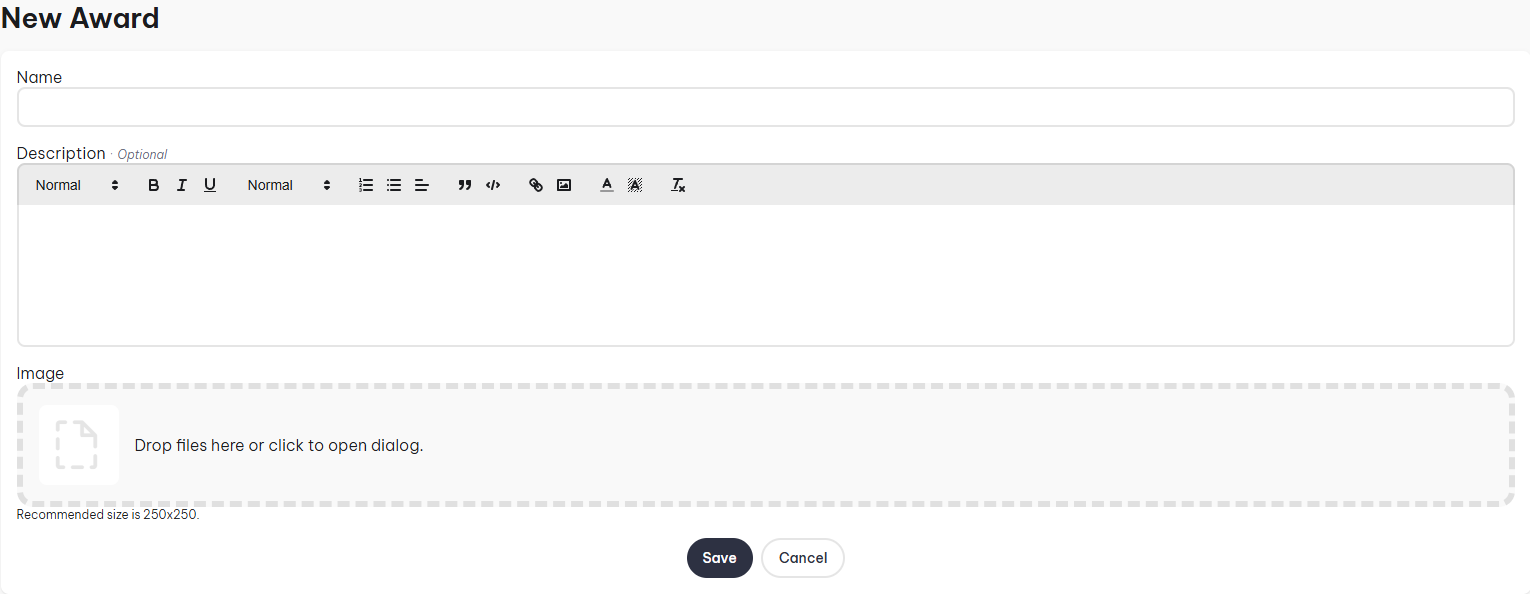
- Name: The name of the award.
- Description: Brief summary outlining the award, could include the requirements for it.
- Image: Visual ribbon or medal representing the award, displayed on p-files.
- Auto Advance Tiers: Only relevant once the award has tiers, see Auto-advance tiers below.
How to award users
To award soldiers, go to Soldiers (Admin Panel > MILHQ > Soldiers) and click on the Quick Actions button and select New Award
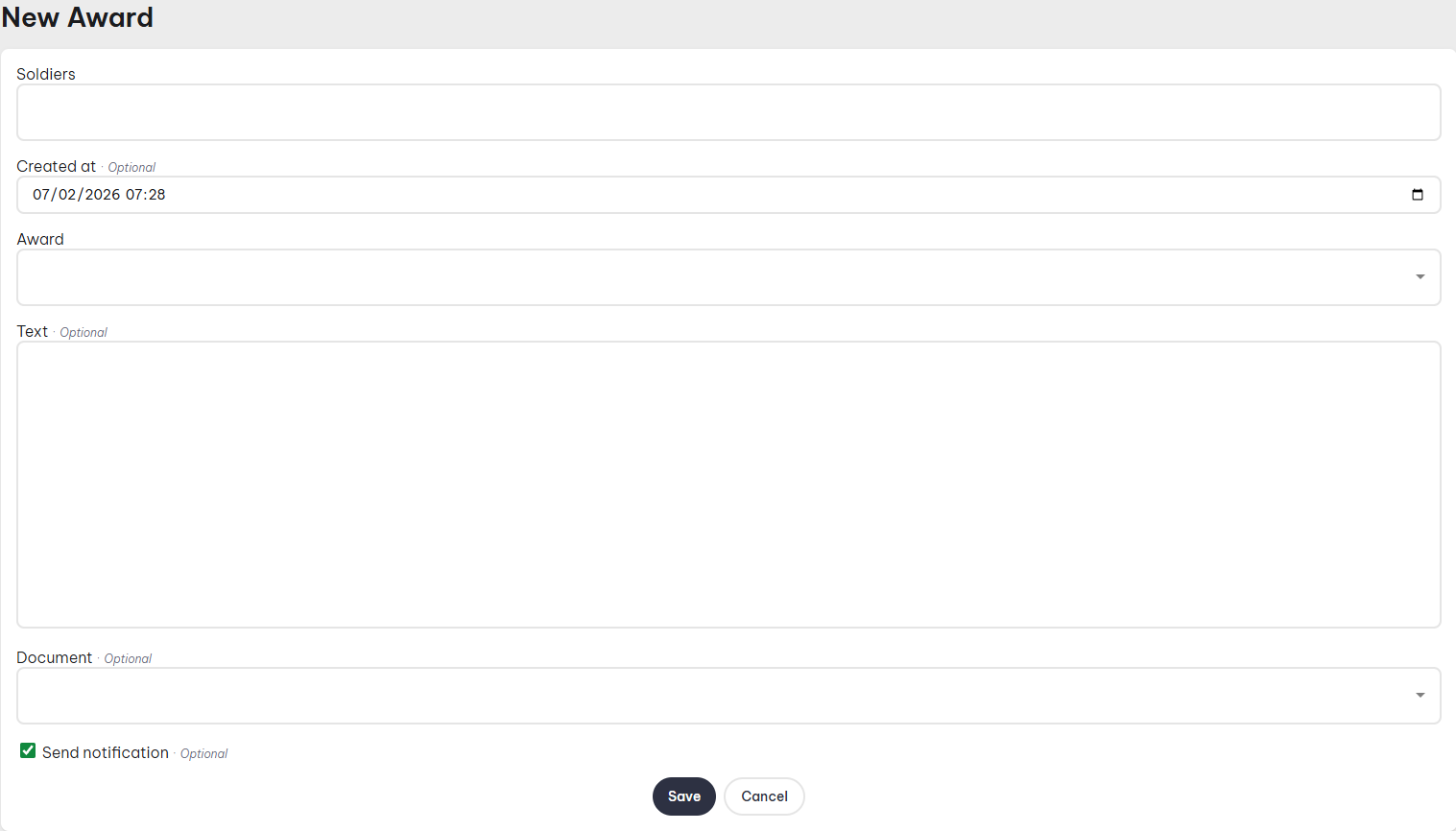
- Soldiers: Here you can select an individual soldier or multiple.
- Created At: Date of record.
- Rank: The award you'd like to award.
- Text: If you want to supply a custom message which is displayed on the p-file.
- Document: Attach a document to the record.
If the award you selected has tiers, and Auto Advance Tiers is disabled, an additional Tier field appears, letting you pick which tier is being granted.
Tiers
Instead of creating a separate award for every level of the same achievement (e.g. "Marksmanship Bronze", "Marksmanship Silver", "Marksmanship Gold"), you can create a single award and give it tiers. Each tier can have its own name and image, so a soldier's badge changes to reflect their current level, while everything still lives under one award.
How to create a tier
Edit an existing award, click on the "Tiers" tab, then click the + button.
- Name: The name of the tier, e.g. "Gold".
- Image: Optional. Overrides the award's image whenever this specific tier is granted or displayed. Leave blank to keep using the award's own image.
Once you have more than one tier, you can reorder them using the up/down arrows in the tier list. The order determines both how tiers are listed when granting one manually, and the sequence auto-advance progresses through.
Auto-advance tiers
Enabling Auto Advance Tiers on the award itself changes how tiered awards behave when granted:
- Disabled (default): an admin must pick a tier every time the award is granted, and a soldier can accumulate multiple tier records for the same award over time.
- Enabled: no tier selection is shown when granting the award. Instead, granting it automatically moves the soldier to the next tier in the order — the first tier if they've never received this award before, or the tier after their most recently granted one. Once a soldier has reached the highest tier, granting the award again keeps them on that same tier.
Auto-advance only applies to awards. Qualifications don't have this option — granting a tiered qualification always requires selecting the tier manually.
Tiers on the soldier profile
- The award badges at the top of the soldier's p-file only differentiate tiers for auto-advance awards: the badge shows the current tier's image, with the tier name appearing in the tooltip when hovering over it.
- In the full Award Records history further down the p-file, every record shows which tier (if any) it was granted at, along with that tier's own image.
Turning an award into a tier
If you've already created two separate awards that really represent different levels of the same achievement, you can merge them into a single award with tiers, without losing any existing award records.
To do this, go to Awards (Admin Panel > MILHQ > Organization > Awards) and click the action next to the award you want to convert.
- Award: Read-only, this is the award being converted into a tier.
- Tier Name: The name of the new tier that will be created from this award.
- Target Award: The award that will receive the new tier.
- Target Award Name: Optional. Rename the target award, e.g. if it's currently named "Marksmanship (Expert)", you can rename it to just "Marksmanship".
- Target Tier Name: Optional. Only used if the target award doesn't have any tiers yet, but already has award records of its own — those existing records need to become a tier too, before the tier from the award you're converting is added.
This is a one-way operation: the award being converted is deleted, and all of its existing award records are moved over to the target award under the new tier.