
Premium Feature
Courses
Courses allow you to create trainings and courses, track attendance of instructors and students, and automatically create service, qualification, and award records based on their performance. This feature requires MILHQ Premium.
How to create a new course
Head over to Courses (Admin Panel > MILHQ > Courses) and create a new course.
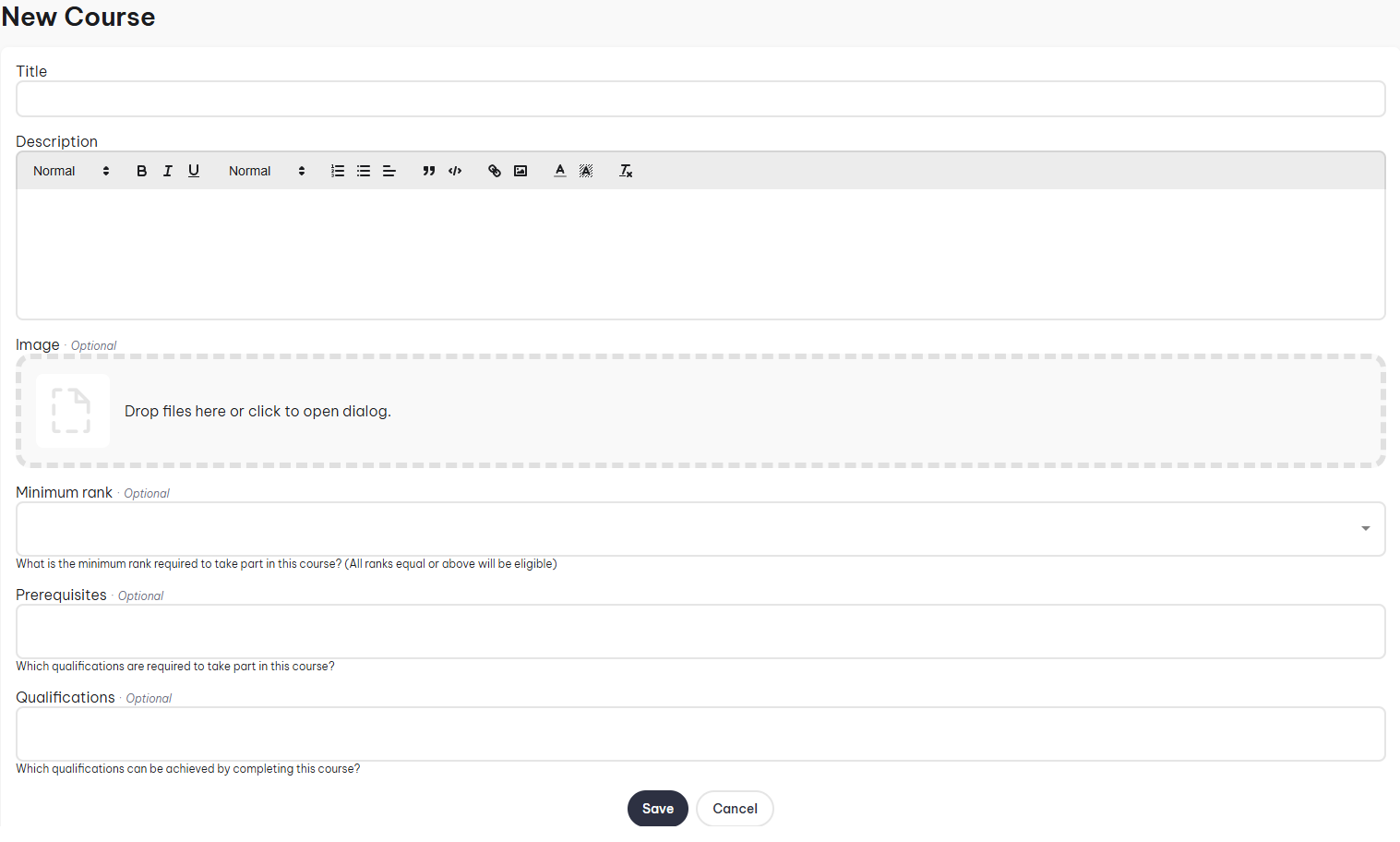
- Title: This is the title of the course.
- Description: Explain what the course is about.
- Image: Image that represents the course.
- Minimum Rank: You can restrict what ranks can take part in the course. All ranks equal or above will be eligible.
- Prerequisites: Restrict who can attend by setting qualification prerequisites.
- Qualifications: Set what qualifications can be achieved by completing this course.
- Awards: Set what awards can be granted by completing this course.
Only qualifications and awards selected here can be granted from this course's class reports. See Qualifications and Awards for more information, including how tiers work.
How to create a course instructor role
Course instructor roles let you distinguish between different roles of instructors that they can sign up to. Once you've created a course, edit it, click on the instructors tab, then click on the + button.
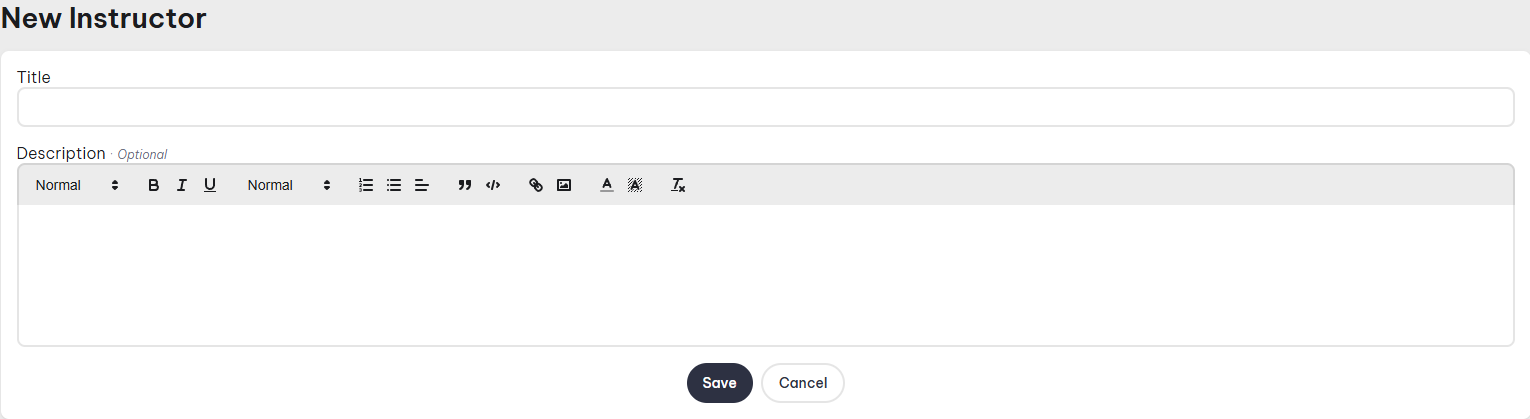
Instructor roles are optional. If a course has none configured, the Role column is simply left out of that course's class reports.
Classes
Once you've created a course, you're able to create a class for the course. This is where people can RSVP, see the instructors and trainees, and see relevant information about the class.
How to create a new class
Head over to the Operations Center and click on Training & Schools, click on the course and then click New Class.
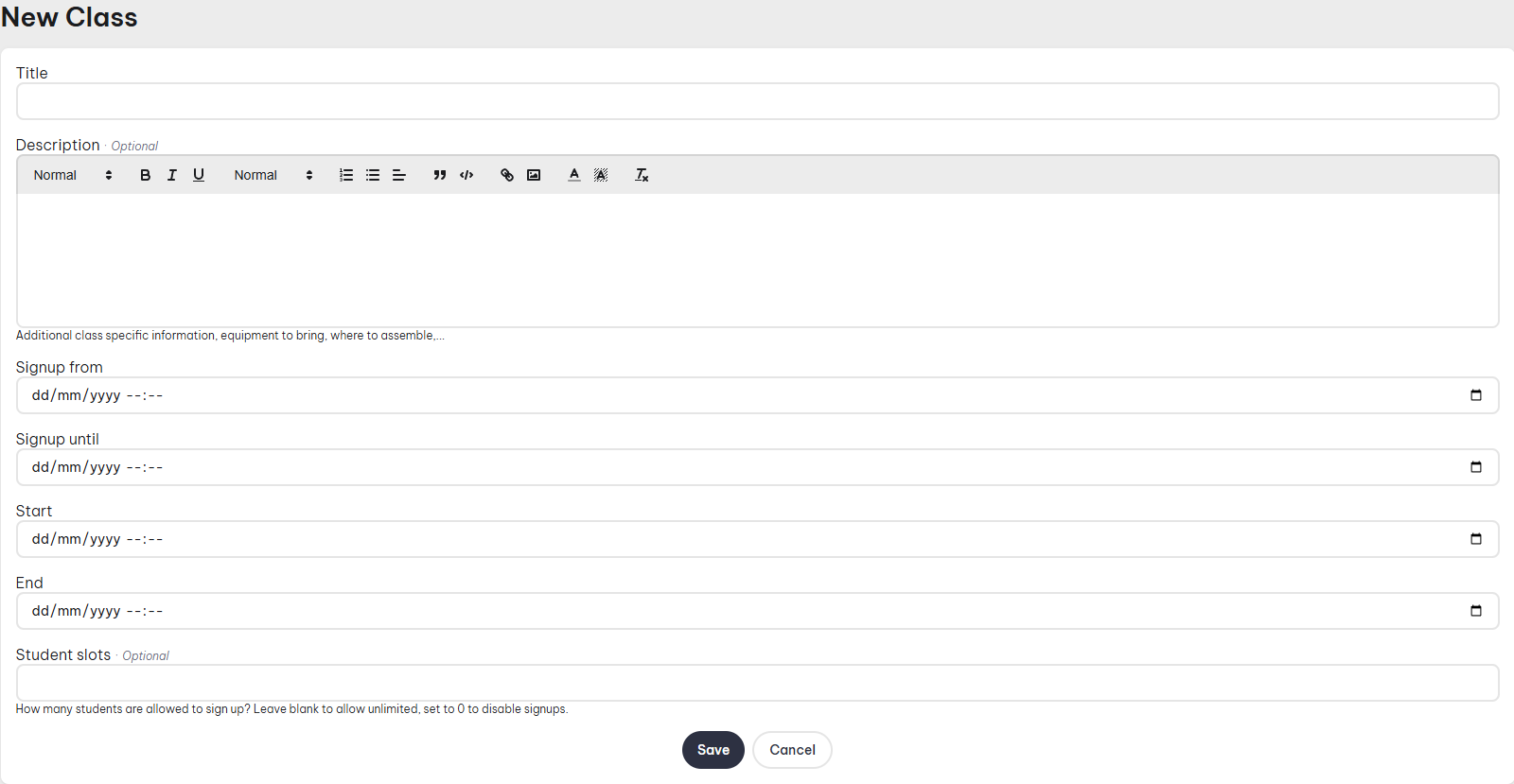
- Title: Title of the class.
- Description: Explain any additional class information, equipment to bring, where to assemble.
- Signup from: Set the date from when people can sign up to the class.
- Signup Until: Set the date for the last day which people can sign up to the class.
- Start: Class start date.
- End: Class end date.
- Student Slots: Set how many students can sign up. Leave blank to allow unlimited or set to 0 to disable signups.
Class Page
Once you've created a class, you can head to the class page to RSVP, Submit Class Reports, Edit the class, and see who has RSVP'ed.
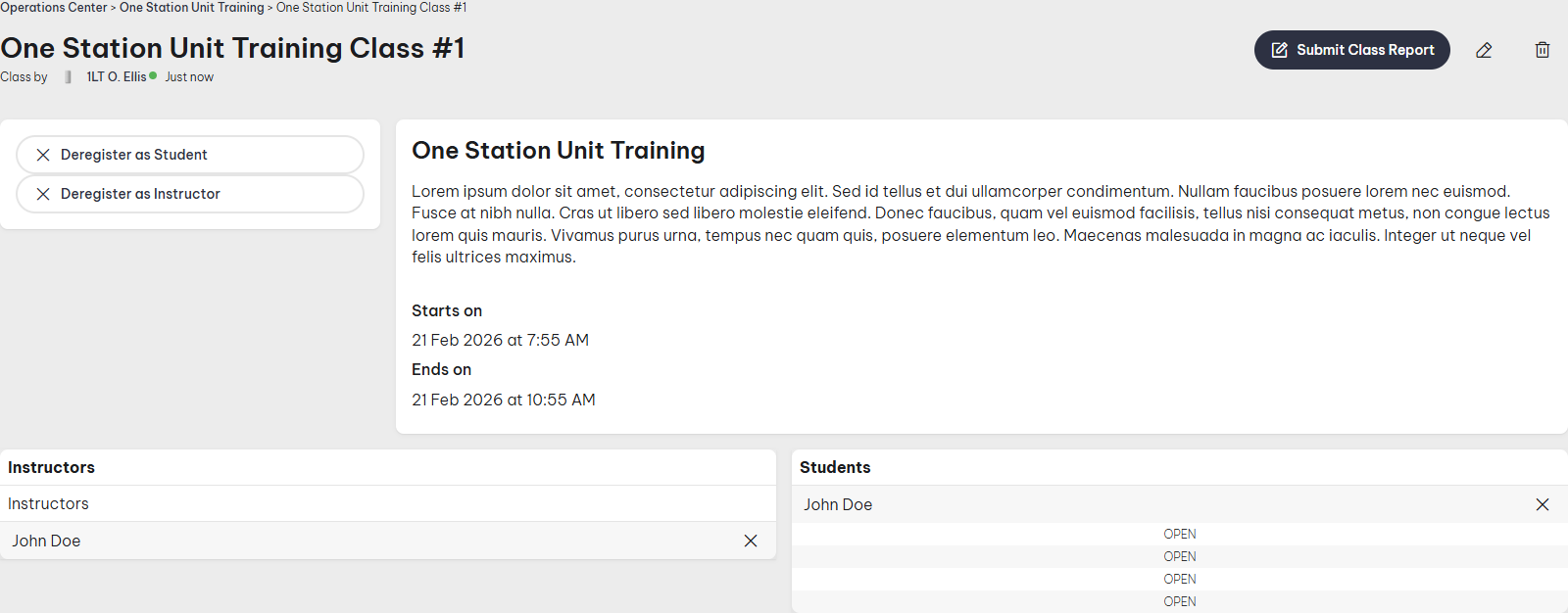
Once a class report has been submitted, the class page also shows, per student, which qualifications and awards they earned (including the tier, if any). Any notes left on a student in the report are only visible to soldiers with permission to manage the course's classes, not to the wider unit.
How to submit a class report
A Class Report lets you submit a report for individual instructors and students, and automatically grants service records, as well as any qualifications and awards earned during the class.
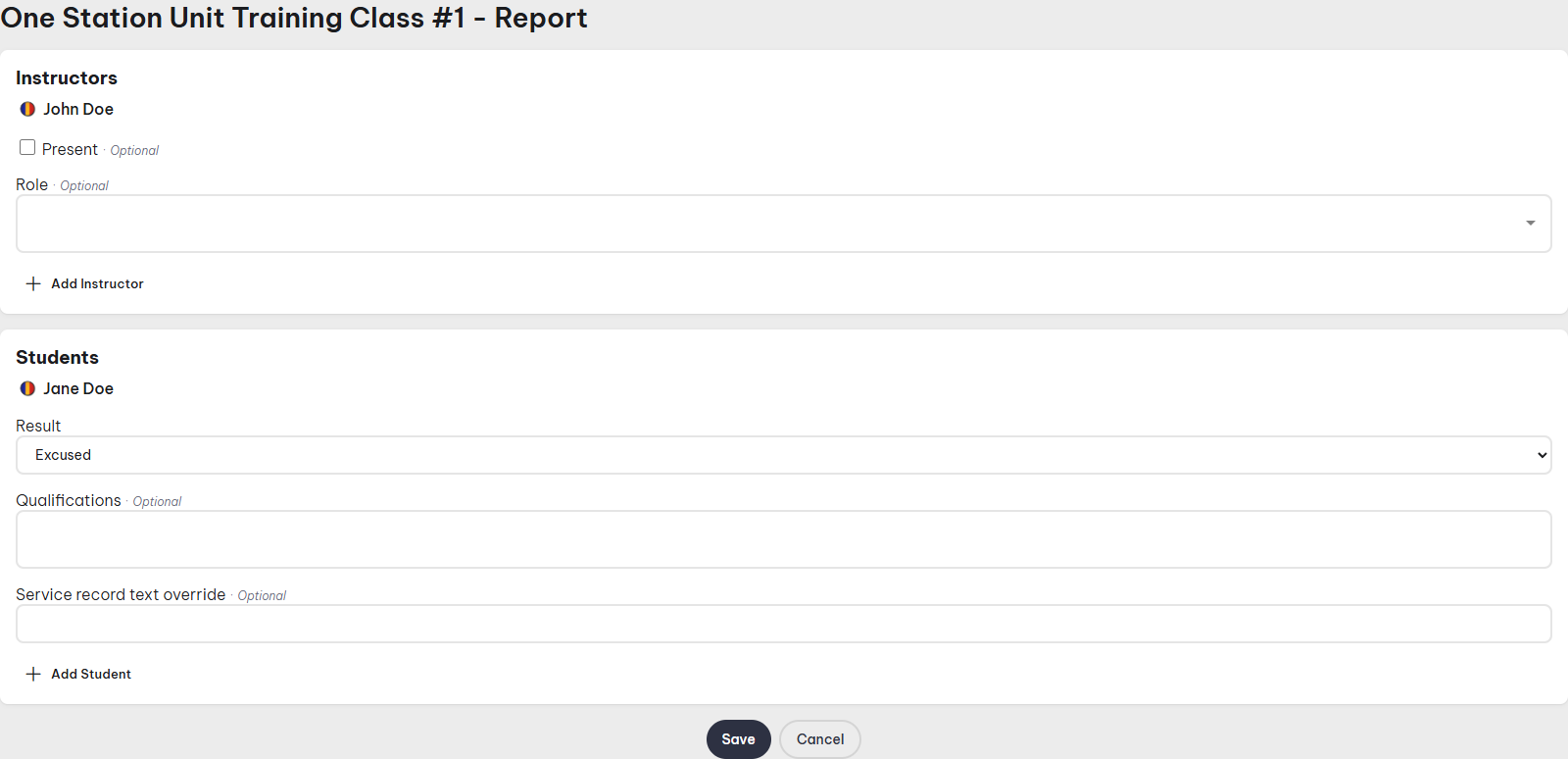
Instructors
- Present: Tick if the RSVP'ed instructor was present.
- Role: If the course has instructor roles, this is where you can select the individual instructor's role. This column is left out entirely for courses that don't have any instructor roles configured.
- Add Instructor: If an instructor joined but had not RSVP'ed, you can still add them to the class report.
Students
- Result: The individual student's class result — Excused, Failed, No Show, or Passed.
- Qualifications/Awards: One column per qualification and award configured on the course (see How to create a new course above). These only apply once Result is set to Passed. Untiered qualifications and auto-advance awards show a checkbox; tiered qualifications and non-auto-advance tiered awards show a dropdown to select which tier was earned.
- Details: Click the chevron button to expand a row and reveal:
- Service Record Text Override: Override the default "Graduated <Class Title>" text shown on the soldier's service record.
- Notes: Free-form rich text notes about the student, only ever visible to soldiers who can manage the course's classes.
- Add Student: If a spot opens up mid-game and is taken by a student who didn't RSVP, then you can still add them to the class report.
Service, qualification, and award records are only created the first time a class report is submitted. Editing a report afterwards updates what's shown on the class page, but it will not create, update, or remove any records — re-submitting is not a way to correct records after the fact.