
Qualifications
Qualifications are a way for users to qualify on courses, enhancing their skills within the unit.
How to create a qualification
To create one, head over to Admin Panel > Organization > Qualifications and click on the + button.
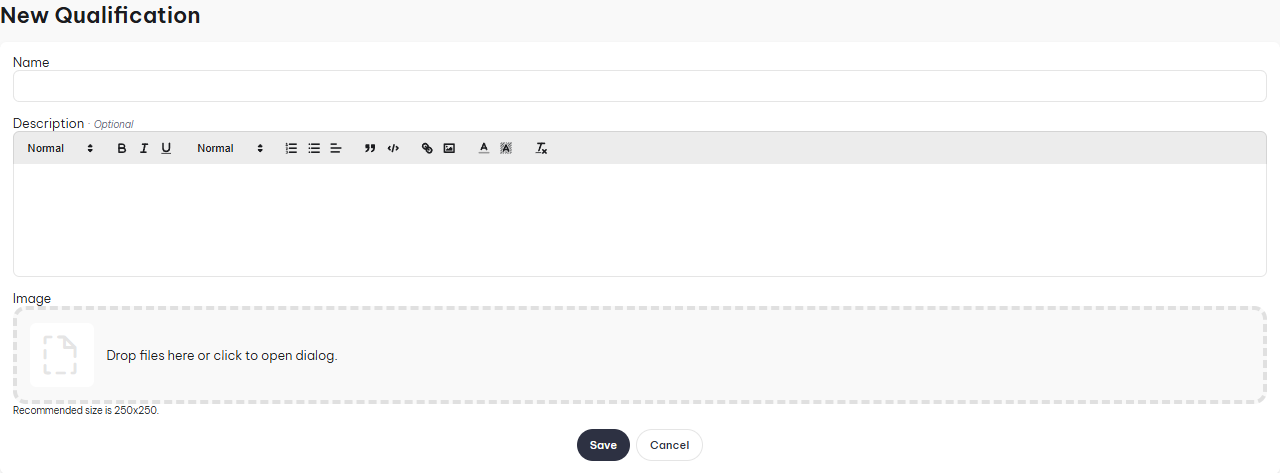
- Name: Name of the qualification.
- Description: Explain what the qualification is, how to get it, what you get from receiving it.
- Image: Attach an image to the qualification.
How to qualify a soldier
To qualify a soldier, head over to Admin Panel > Soldiers and click on the Quick Action button and click New Qualification
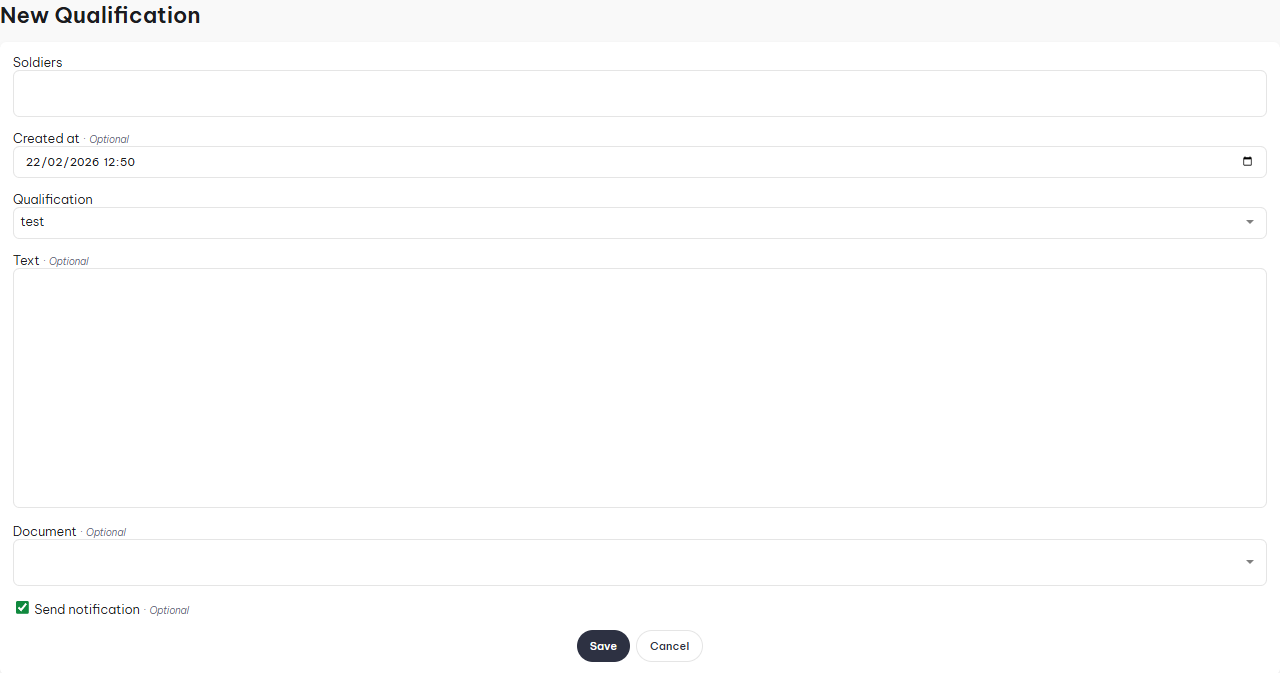
- Soldiers: You can attach an individual or multiple soldiers, making batch qualifying easier.
- Created At: Select the date of the qualification.
- Qualification: Select the qualification.
- Text: If you want to supply a custom message which is displayed on the p-file.
- Document: Attach a document to the qualification.
If the qualification you selected has tiers, an additional Tier field appears, letting you pick which tier is being granted. Tiered qualifications can also be granted through a course's class report, see Courses.
Tiers
Instead of creating a separate qualification for every level of the same skill (e.g. "Land Navigation: Basic", "Land Navigation: Expert"), you can create a single qualification and give it tiers. Each tier can have its own name and image, so a soldier's record reflects their specific skill level, while everything still lives under one qualification.
How to create a tier
Edit an existing qualification, click on the "Tiers" tab, then click the + button.
- Name: The name of the tier, e.g. "Expert".
- Image: Optional. Overrides the qualification's image whenever this specific tier is granted or displayed. Leave blank to keep using the qualification's own image.
Once you have more than one tier, you can reorder them using the up/down arrows in the tier list. The order determines how tiers are listed when granting one, whether through Quick Actions or a course's class report.
Unlike awards, qualifications don't have an auto-advance option — a tier must always be selected manually whenever a tiered qualification is granted.
Tiers on the soldier profile
In the Qualification Records history on the soldier's p-file, every record shows which tier (if any) it was granted at, along with that tier's own image.
Turning a qualification into a tier
If you've already created two separate qualifications that really represent different levels of the same skill, you can merge them into a single qualification with tiers, without losing any existing qualification records.
To do this, go to Qualifications (Admin Panel > MILHQ > Organization > Qualifications) and click the action next to the qualification you want to convert.
- Qualification: Read-only, this is the qualification being converted into a tier.
- Tier Name: The name of the new tier that will be created from this qualification.
- Target Qualification: The qualification that will receive the new tier.
- Target Qualification Name: Optional. Rename the target qualification, e.g. if it's currently named "Rifle: Expert", you can rename it to just "Rifle".
- Target Tier Name: Optional. Only used if the target qualification doesn't have any tiers yet, but already has qualification records of its own — those existing records need to become a tier too, before the tier from the qualification you're converting is added.
This is a one-way operation: the qualification being converted is deleted, and all of its existing qualification records are moved over to the target qualification under the new tier.