
Organization Introduction
Before soldiers can enlist, check their p-files, and mark their attendance for courses, admins need to set up their organization within the MILHQ Admin Control Panel. (Admin Panel > MILHQ > Configuration)
Documents
Documents provide admins with the ability to attach a visual formal document to a record.
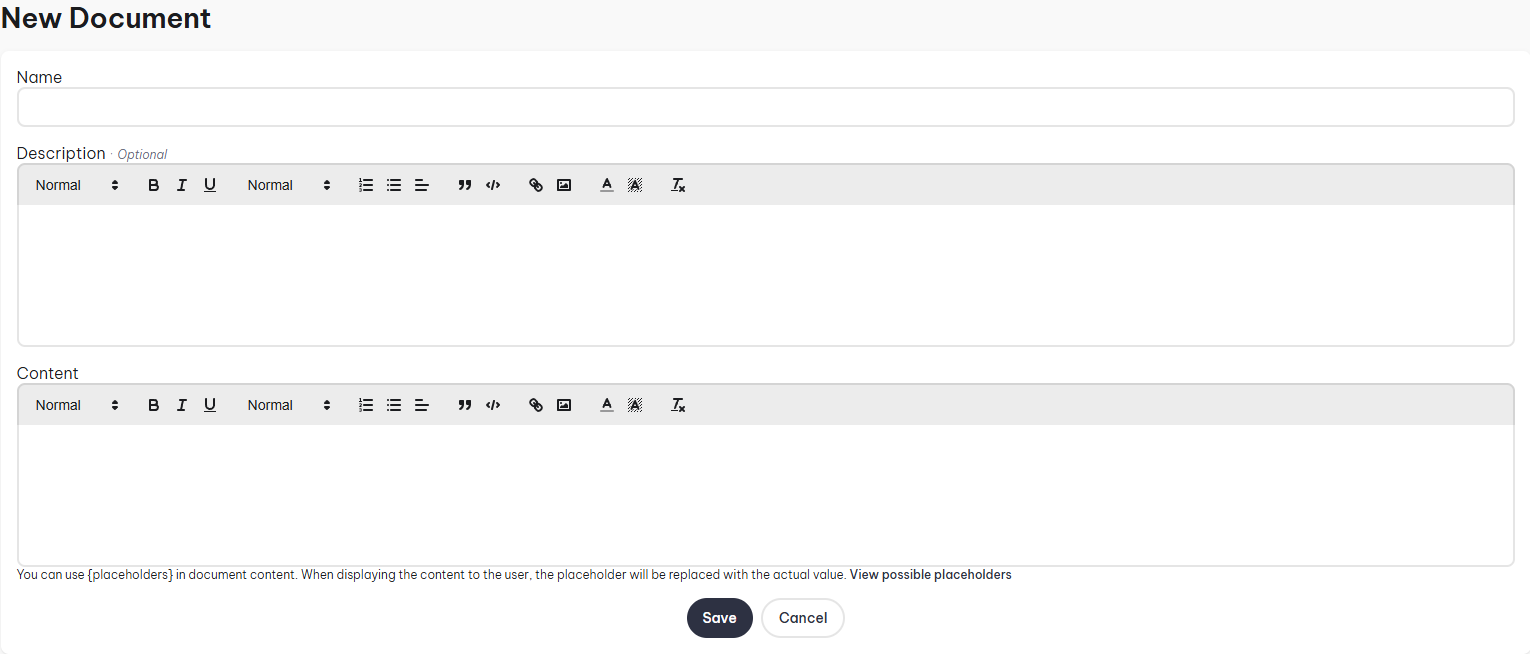
- Name: The name of the position.
- Description: Brief summary outlining the document, only seen in the admin control panel.
- Content: This is what will appear when you open the document in a p-file, you can use placeholders to display soldier data.
- To see what variables you can use, click on the View possible placeholders in the New Document form.
Forms
Forms are a great tool to allow soldiers to submit forms such as Leave of Absence. Learn more about Forms.
Positions
Positions provide indication of a soldier's position within the unit.
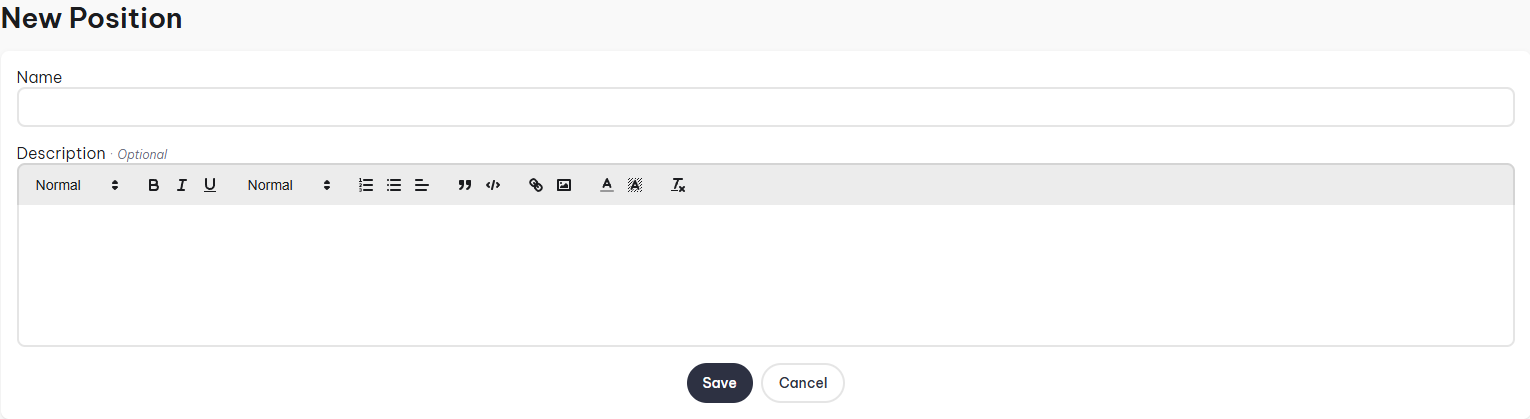
- Name: The name of the position.
- Description: Brief summary outlining the position, only seen in the admin control panel.
Ranks
Ranks define authority, responsibility, and progression within your unit. At the moment, ranks are structured in a flat list, meaning there is no categories for them.
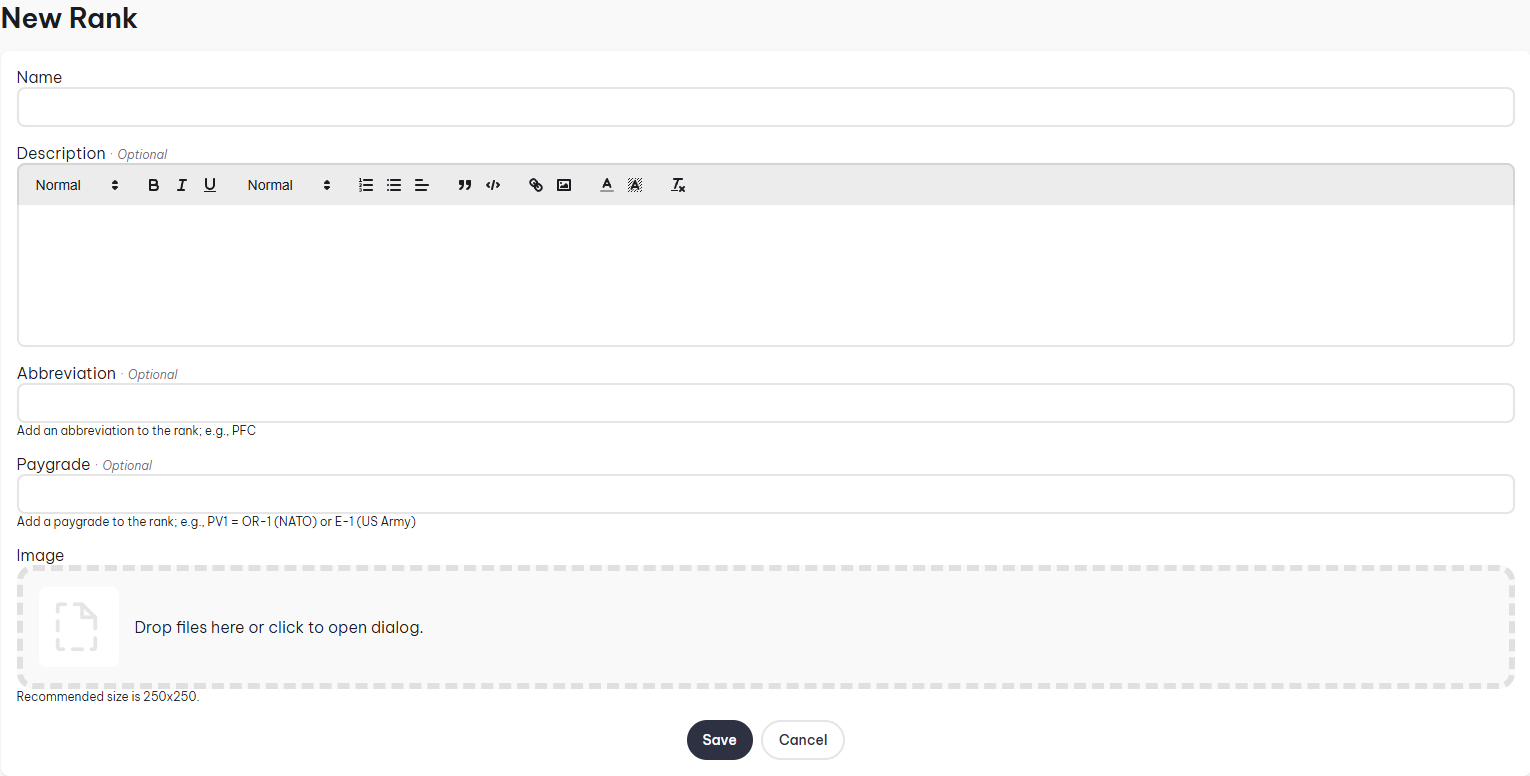
- Name: The name of the rank.
- Description: Brief summary outlining the role.
- Abbreviation: A shortened form used for compact display. (Example: "CPT" for Captain).
- Paygrade: The numeric or letter grade indicating the rank's level within the hierarchy.
- Image: Visual insignia representing the rank, displayed on p-files and rosters.
Rosters
Rosters let admins categorise their units.
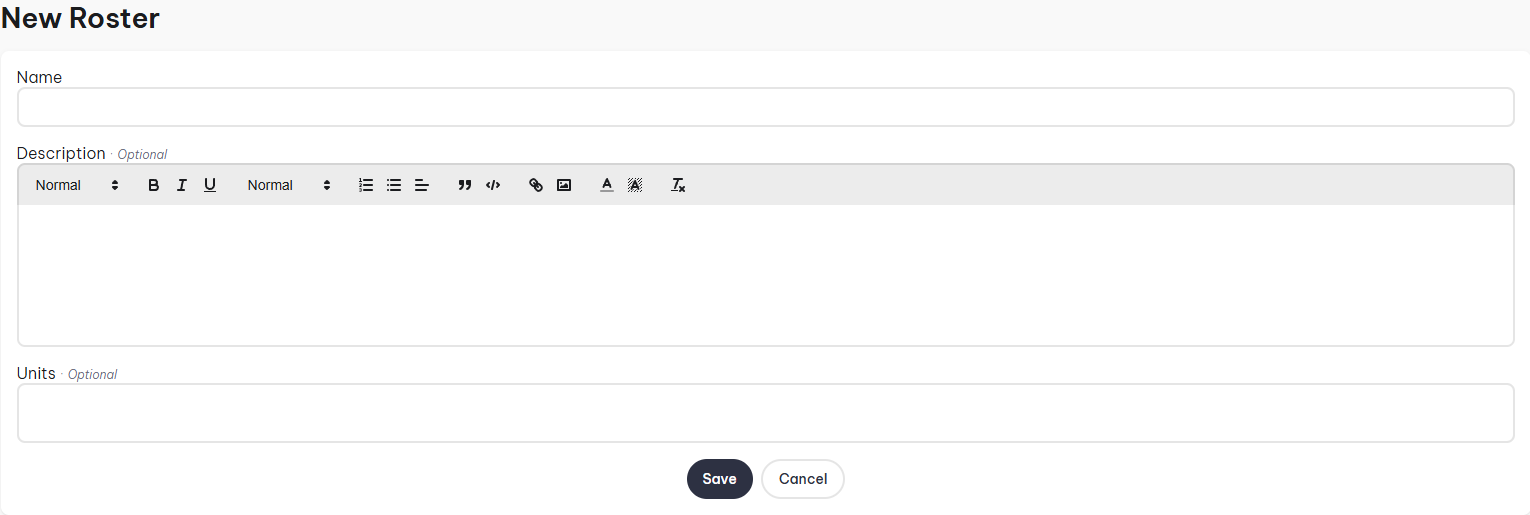
- Name: The name of the roster.
- Description: Brief summary outlining the roster, only seen in the admin control panel.
- Units: Select what units are grouped under this roster.
To find out how to create units, scroll down to Units
Specialties
Specialties are a way to identify a soldier's specialty. As an example for a US Infantryman, their specialty would be 11B (Their MOS). While for a UK soldier with training as a sharpshooter, might have "Sharpshooter" as their specialty.
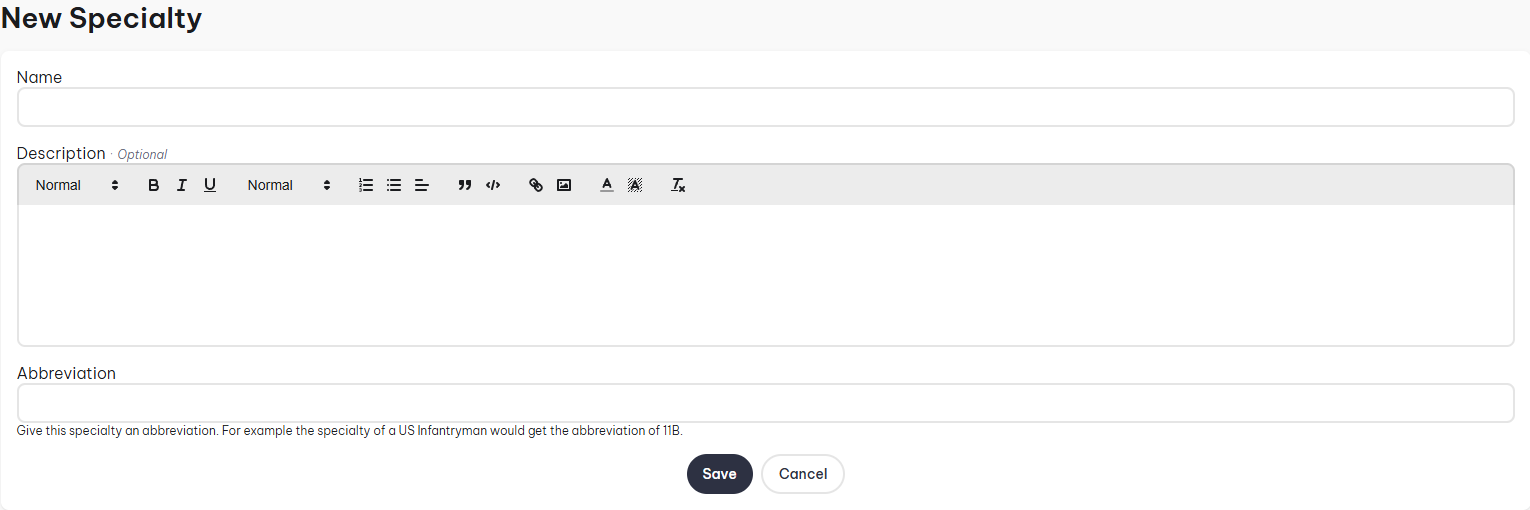
- Name: The name of the specialty.
- Description: Brief summary outlining the specialty, could include the requirements for it.
- Abbreviation: A shortened form used for compact display. (Example: "11B" for Infantryman).
Statuses
Statuses inform us of a soldier's current standing and availability. For example, if a soldier has the status "LOA" then we know that they're currently not available to attend missions. Setting up statuses is rather easy,

- Name: The name of the status.
- Color: Give the status a color to make it easily identifiable.
Units
Units provide the core organizational structure within your unit. They determine how and where personnel are grouped for missions, administration, and support.
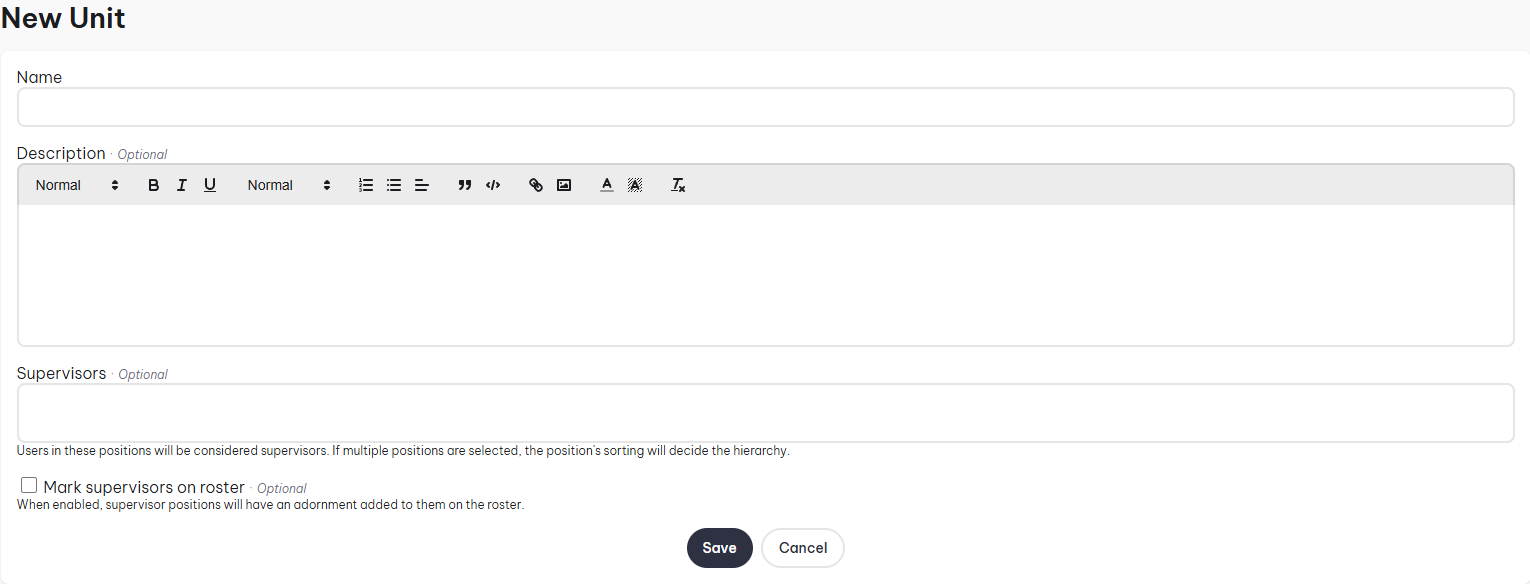
- Name: The name of the unit.
- Description: A description for the unit, this is optional.
- Supervisors: You can set the unit's 1IC and 2IC by selecting the positions. If multiple positions selected, the position's sorting will decide the hierarchy.
- Mark supervisors on roster: This will add an adornment on the roster.